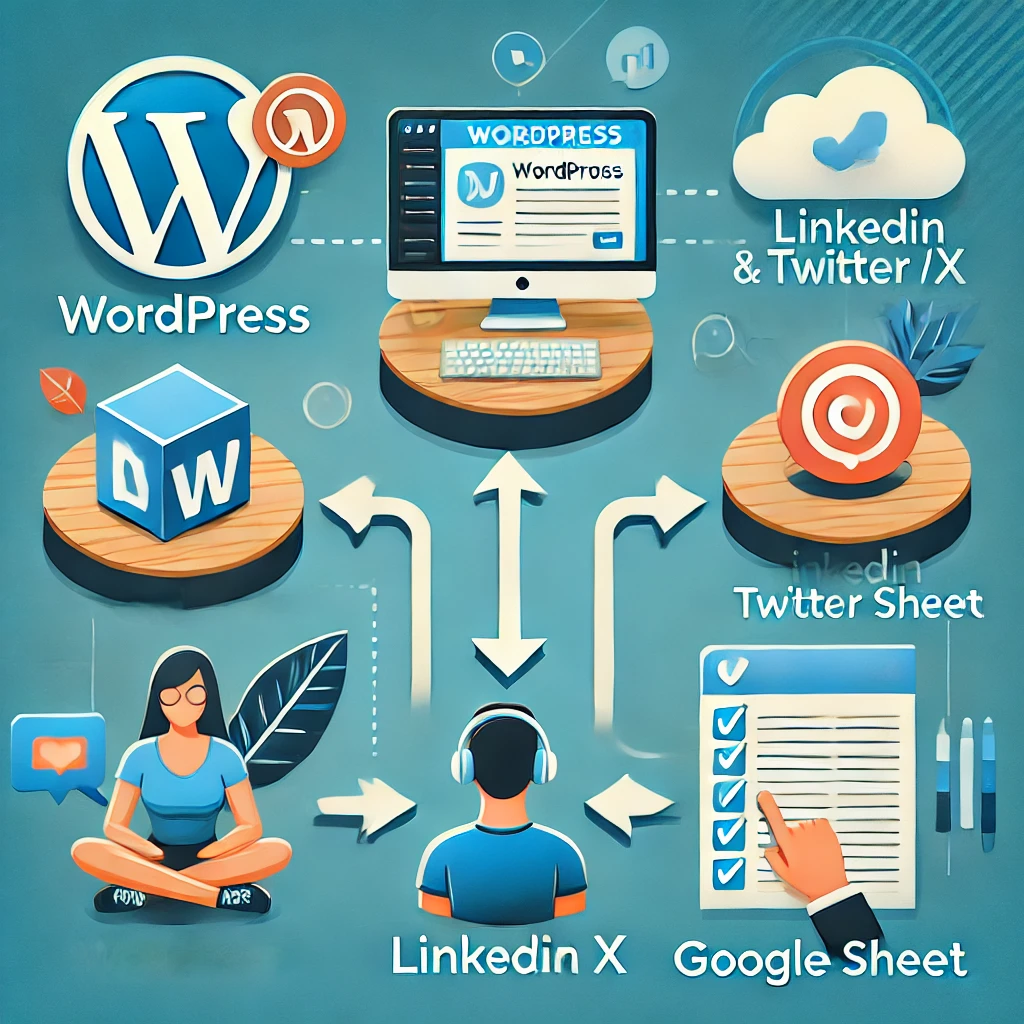
Automation is the name of the game in today’s digital world. If you’re spending too much time manually creating social media posts for your latest blog content, it’s time to let technology do the heavy lifting. In this in-depth guide, we’ll show you how to set up a full-fledged automated workflow using Make.com, WordPress, ChatGPT, and Google Sheets. By the end of this, every time you publish a blog post, your LinkedIn and Twitter posts will automatically generate, log into a Google Sheet, and get you noticed without lifting a finger. 🤖✨
Let’s dive in!
Step 1: Setting Up Your OpenAI (ChatGPT) Account 🧠
ChatGPT is the magic sauce that’ll write your social media posts for you. To connect it to your automation, you’ll need an OpenAI account.
1.1 Create an OpenAI Account
If you don’t have an account yet, head over to OpenAI and sign up.
1.2 Subscribe to a Paid Plan 💸
To use ChatGPT’s API in Make.com, you’ll need an OpenAI paid plan. Don’t worry—it’s super affordable, and you only pay for what you use!
1.3 Grab Your API Key 🔑
Once your account is set up, go to your OpenAI Dashboard and find your API key. This is what you’ll plug into Make.com so it can communicate with ChatGPT.
Step 2: Make Sure You Have a Make.com Account 🛠️
Now that you’ve got your ChatGPT set up, it’s time to connect everything through Make.com.
2.1 Create a Make.com Account
If you don’t already have a Make.com account, sign up at Make.com. Once registered, you’ll create a new scenario, which will be the magic engine behind the automation.
2.2 Import the Scenario Blueprint
We’ve made things easy by creating a scenario for you! Simply import the blueprint by:
- Going to the bottom of your new scenario page.
- Clicking the three dots (next to the small plane icon).
- Clicking “Import Blueprint” and uploading the file we’ve provided.
Now you’re ready to start automating!
Step 3: Connect Your WordPress Account 📝
The next step is to connect your WordPress blog to Make.com so it can watch for new posts.
3.1 Install the Make.com Connector Plugin
First, head to your WordPress dashboard, navigate to Plugins, and install the Make.com Connector Plugin. This plugin allows WordPress to communicate with Make.com.
3.2 Open the Scenario in Make.com
Head back to Make.com and open your imported scenario. You’ll see a module titled “Watch Posts”—this is where you’ll connect your WordPress account.
3.3 Create a Connection
Click on the Watch Posts module, and select “Create a Connection.” You’ll need to enter your WordPress site’s details here, including the WordPress REST API base URL (this is your site’s URL followed by /wp-json/, e.g., https://your-site.com/wp-json/).
3.4 Complete the Connection
Once you enter your site details, click “OK” to confirm. Now Make.com is officially monitoring your blog for new posts. You can set how often Make.com checks for new posts—every 15 minutes, hourly, or even daily. Choose what works best for you!
Step 4: Connect Your OpenAI Account (ChatGPT) 🤖
To generate the social media posts automatically, you need to connect your OpenAI account to Make.com.
4.1 Connect the ChatGPT Module
In the Make.com scenario, find the ChatGPT module (labeled “Create a Completion”). Click it to connect your OpenAI account.
4.2 Enter Your API Key
Copy the API key you got earlier from OpenAI and paste it into the ChatGPT module on Make.com.
4.3 Set Your Organization ID
In addition to the API key, you’ll also need your Organization ID, which can be found in your OpenAI settings. Copy this and paste it into the appropriate field on Make.com.
4.4 Choose Your OpenAI Connection
Now, you’ll need to choose the connection you just created for both the LinkedIn and Twitter (X) modules. Once selected, you’ll be able to see the settings for each post generation.
With ChatGPT connected, every time you publish a new blog post, your LinkedIn and Twitter posts will automatically generate, based on your blog content.
Step 5: Connect Your Google Sheets 📊
We’re almost there! The last step is connecting Google Sheets, which will store a log of all your auto-generated social posts.
5.1 Open the Google Sheets Module
In the Make.com scenario, locate the Google Sheets module.
5.2 Connect Your Google Account
Click “Add” on the Google Sheets module, and sign in to your Google account. Be sure to allow Make.com to access your Google Sheets.
5.3 Select Your Google Sheet
Choose the specific Google Sheet where you want your social posts to be logged. Don’t have one yet? No problem—create a new sheet with columns for:
- Original Post Title
- Post Link
- LinkedIn Content
- Tweet Content
Make.com will automatically populate the appropriate columns every time a new post is published.
5.4 Repeat for the Second Google Sheets Module
Since we’re logging both LinkedIn and Twitter content, you’ll need to connect the same Google Sheet to both modules in the scenario. Follow the same steps as above to ensure everything is synced up.
Ready to Automate Your Social Media? 🎯
Once you’ve got everything connected, you’re all set! From now on, every time you publish a blog post, your LinkedIn and Twitter posts will be automatically generated, logged, and ready for action. No manual work required—just hit “Publish” on your blog, and let the automation handle the rest. 🎉
By following this guide, you’ll have automated the entire process of turning your blog posts into social media content. It’s the perfect setup for anyone who wants to save time, stay consistent on social media, and focus on creating content instead of manually posting it.